Guide#social media#automation#multi-account
Automating repetitive social media tasks on Android, without crossing the line
Managing several accounts, posting, checking notifications: what you can automate on Android, what you must not do, and how to stay within each platform's terms of service.
When you run social media for several clients or projects, a good chunk of the day goes into repetitive gestures: open the app, switch account, check notifications, prepare a post, note down figures. None of it requires creativity. All of it takes time.
Automating part of that work on Android is possible. But social media is an area where one thing needs to be crystal clear before you start.
First, the rule: each platform's terms of service
Every social network has its own terms of service, and most of them strictly regulate automation: automated accounts, bulk actions (follows, likes, comments, messages), fake engagement, getting around limits. Those rules change, and they differ from one platform to the next.
In practice, before automating anything:
- read the terms of service and automation rules of every platform involved;
- prefer official tools when they exist: built-in post schedulers, official APIs, professional suites offered by the platform;
- never automate fake engagement, spam, bulk messaging, or any action meant to mislead other users or bypass a platform's limits.
AppsMobs is a general-purpose automation tool: it runs the actions you define. Respecting each service's rules is your responsibility, and you are exposed to the penalties those rules set out (restricted or suspended accounts) if you do not. This guide focuses on legitimate tasks, the ones that save you time without faking anything.
What lends itself to automation
The best candidates are tasks that are repetitive, predictable and have no effect on other users.
Setting up your workspace
Open the right apps on the right phones, land on the right screen, check that every device is connected and charged. A routine that gets everything ready before you sit down gives you time back every day.
Checking and reporting
Go through each account's notifications, screenshot the statistics the app displays for your weekly report, check that a scheduled post actually went out. These are read-only tasks: they create no artificial interaction.
Testing your own content
Check that a post displays correctly on different phones and screen sizes, that the link in bio works, that a filter or format renders well on a small screen. Side-by-side screenshots from several devices are perfect for that.
Managing several dedicated phones
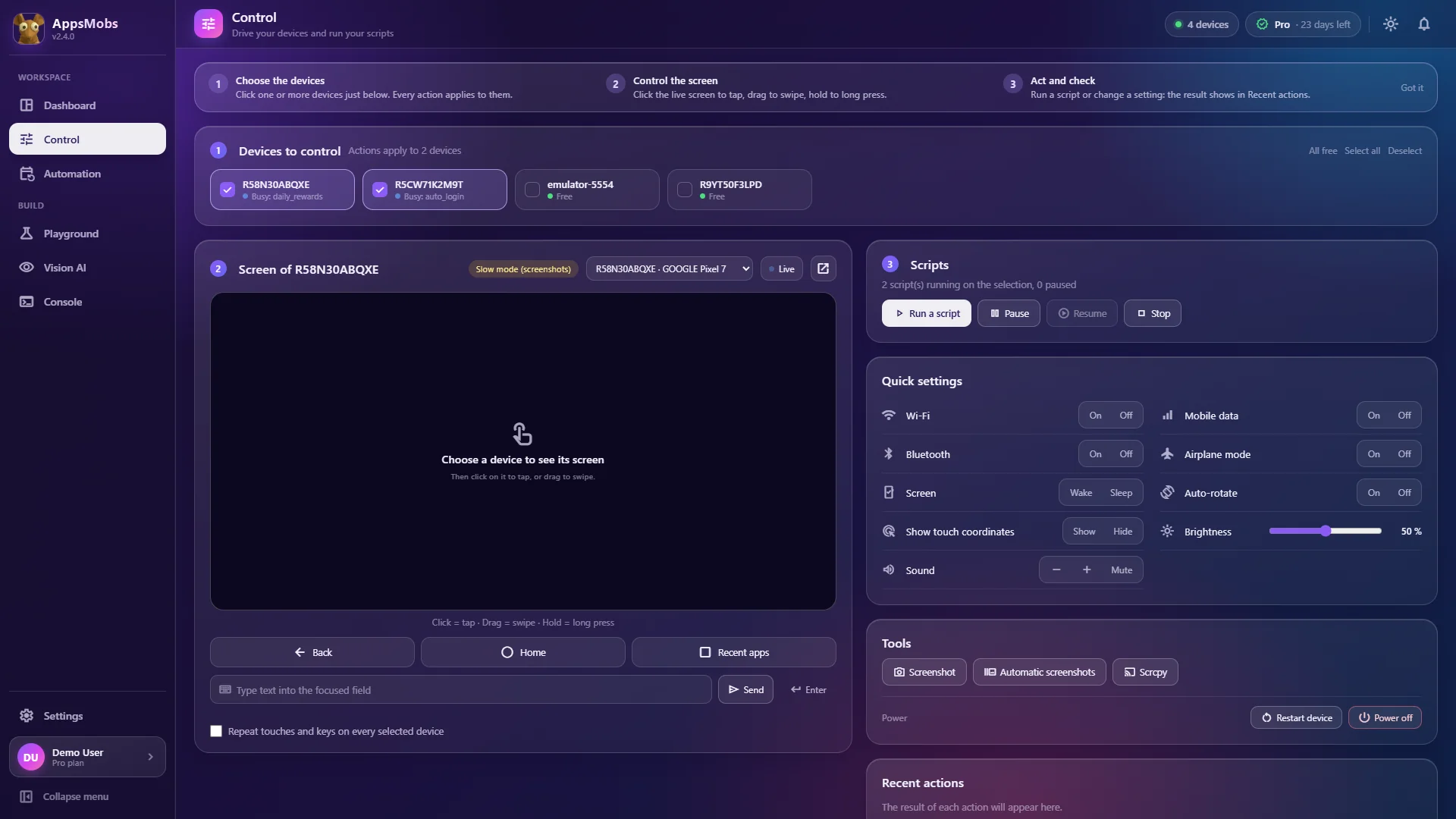
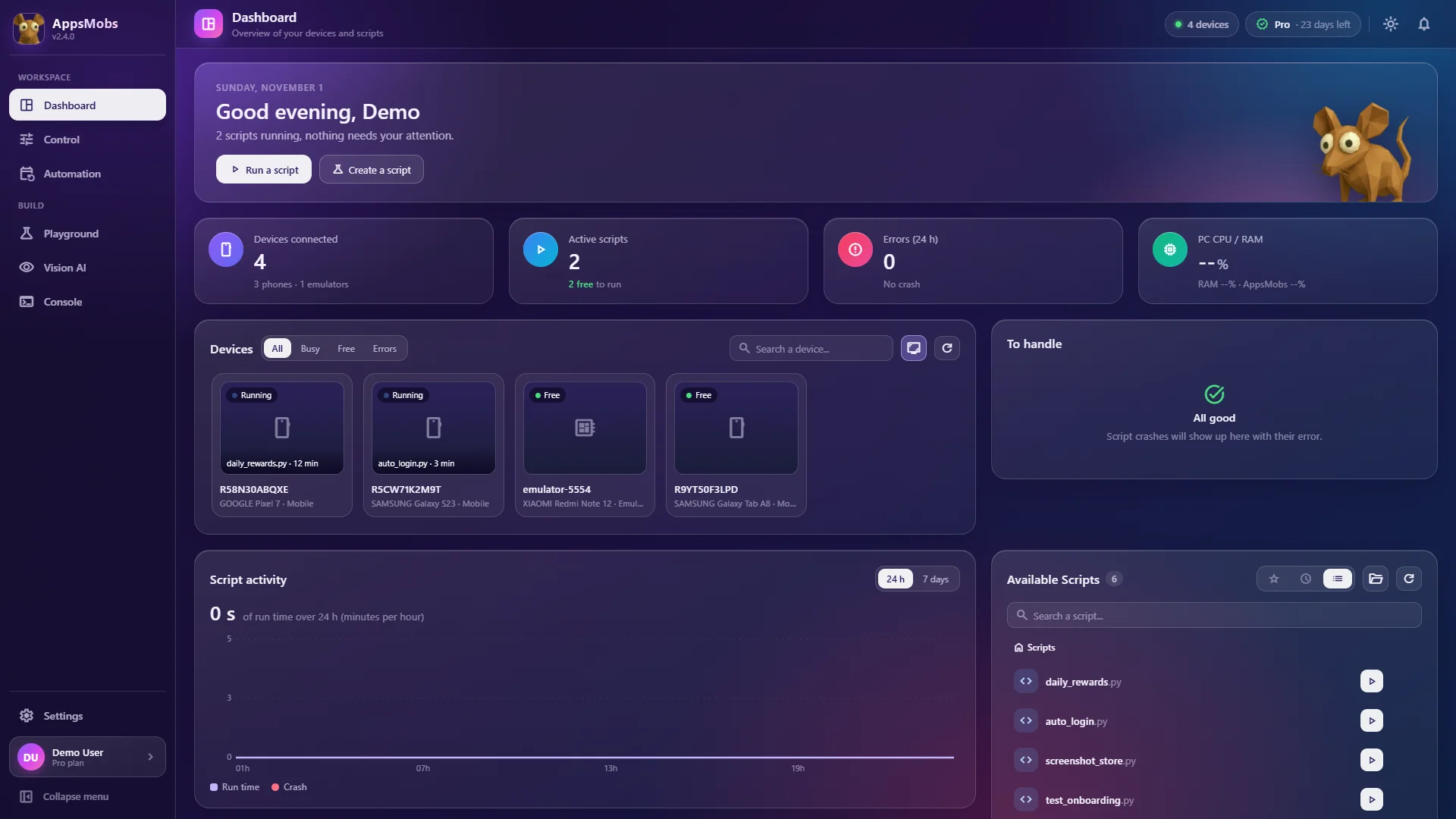
Many professionals use one phone per client to keep accounts cleanly separated. Seeing all those screens in one place on your PC, and stepping in with the mouse on the one you need, saves you from juggling devices.
What not to automate
To be completely clear, here is what is off-limits, whatever the tool:
- automated bulk follows, unfollows, likes or comments;
- automated unsolicited direct messages;
- automated account creation;
- any form of fake engagement (views, reviews, interactions);
- anything used to bypass a limit the platform has put in place.
On top of breaching terms of service, these practices damage your reputation and your clients'.
How to go about it with AppsMobs
1. One phone per context
Connect the phones you use for your accounts over USB. They appear as live thumbnails on your PC's Dashboard (how to connect them).
2. Routines in blocks or Python
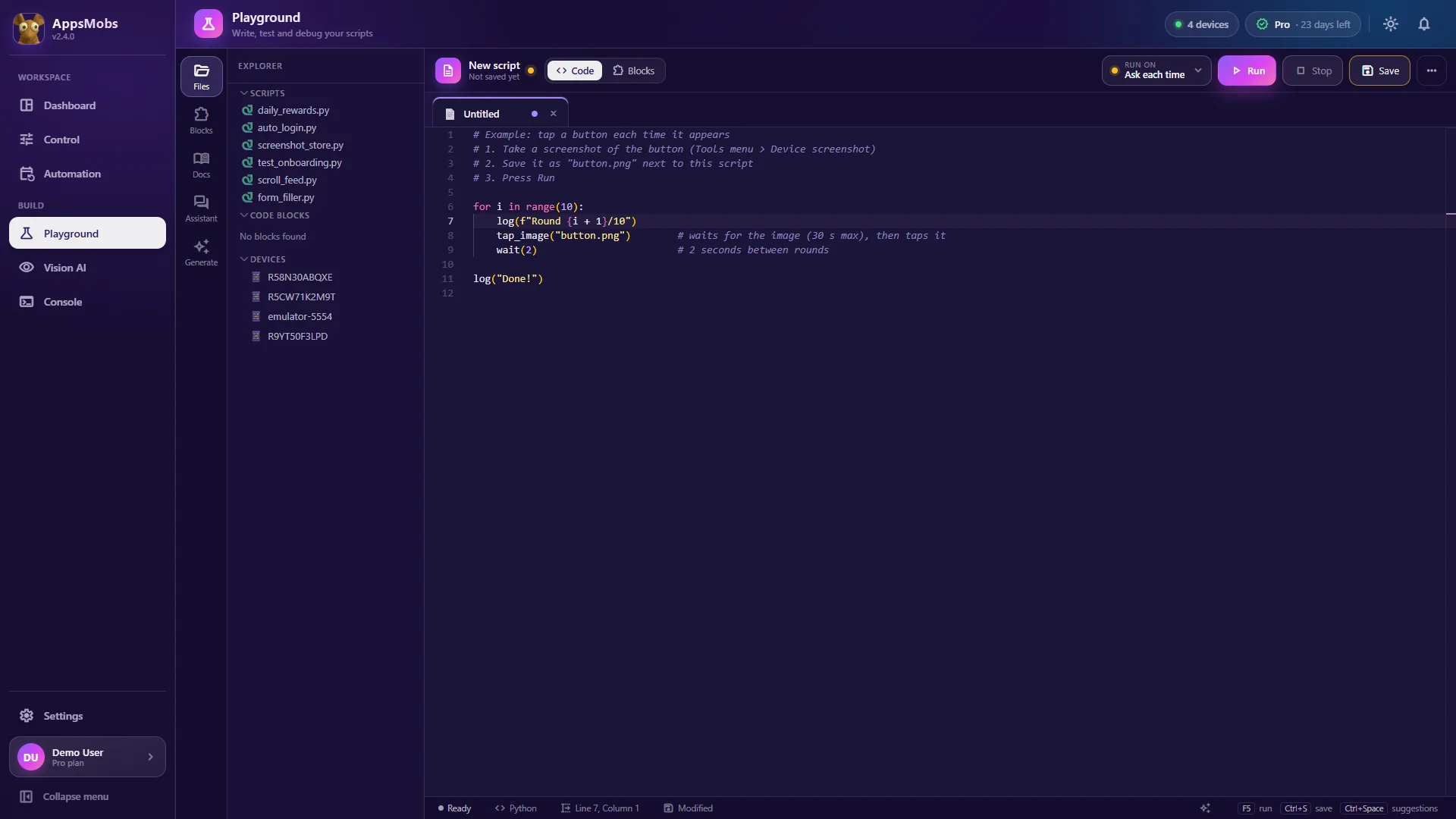
Build a setup or reporting routine with the block editor, no code required: open the app, wait for the screen, take a screenshot, move on to the next account. Smart waits ("wait until the screen appears") make the routine robust to slow loads.
3. Vision for interfaces that change
Social apps update their interface often. Rather than tapping fixed coordinates, Vision AI (from the Pro plan) recognises an on-screen element wherever it is. Your screenshots and your model stay on your PC, unless you choose Cloud GPU training (Google Colab).
4. Keep a record
Every run leaves its log in the Console, and your "screenshot" blocks save the screens you chose to keep. For a client report that is a handy starting point, and it is also a way to check afterwards that the routine did exactly what it was meant to, and nothing more.
5. Stay in control
You can pause a routine at any time, take over a phone by hand, then hand control back. Automation stays at the service of your work, not the other way round.
An example: a weekly reporting routine
Here is what a legitimate, useful routine can look like for someone managing a few client accounts, each on its own phone:
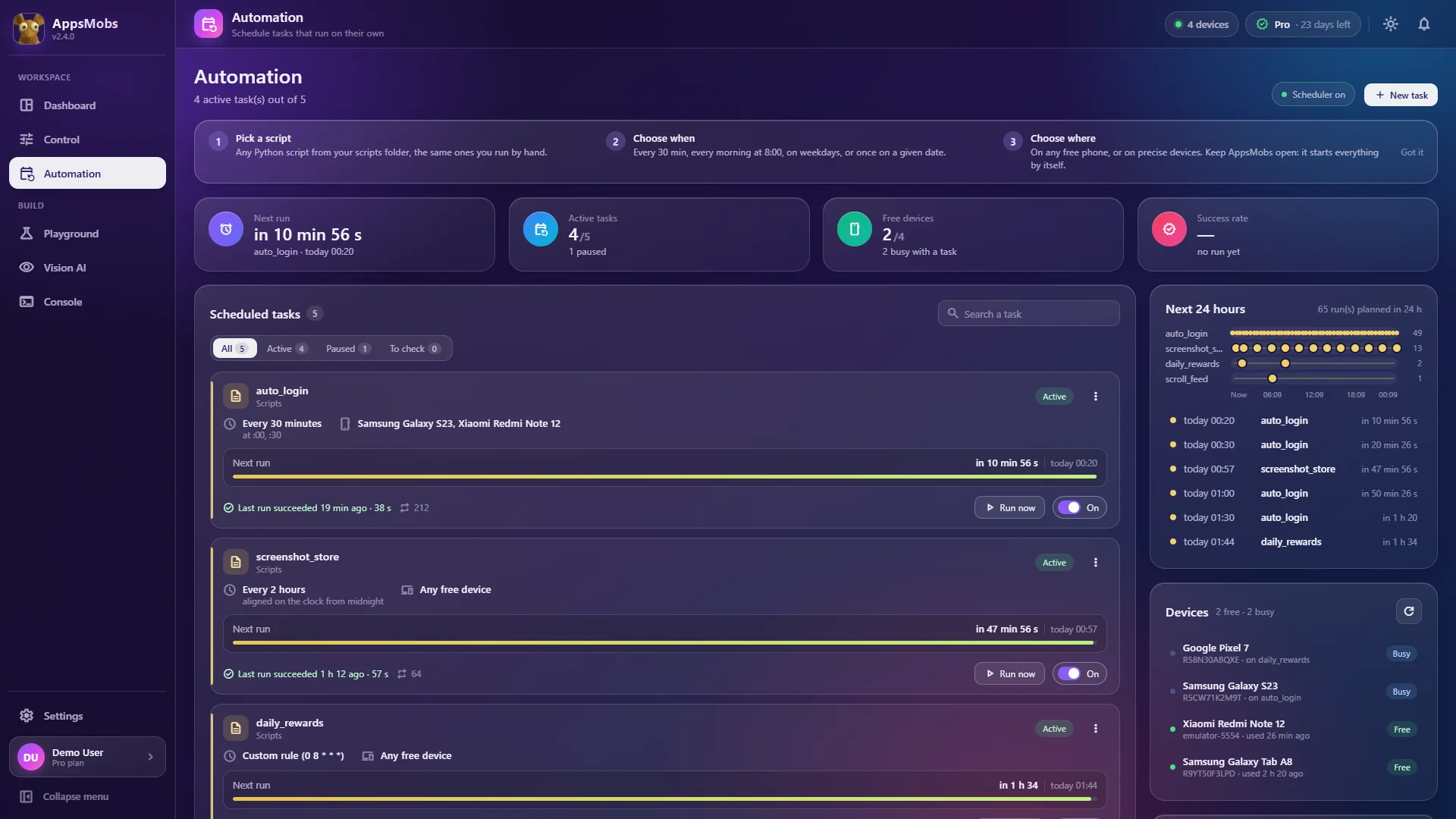
- Monday morning, the scheduler runs the routine on the client phones (the "These specific devices" setting), one after the other.
- On each phone, the routine opens the social app and waits until the home screen has loaded.
- It navigates to the statistics screen the app itself provides, waits for the figures to appear, and takes a screenshot.
- It goes back to the home screen and closes the app, leaving the phone as it found it.
- When every phone is done, the screenshots are waiting in the folder set in the script (for example a
capturesfolder next to the script, usingSCRIPT_DIR).
You then open that folder, pick up the images and write your report. The routine has read information that you could have read by hand, nothing more. It has not liked, followed, commented or messaged anyone. That is the kind of automation that saves real time while staying on the right side of the rules.
If one phone fails along the way (an app update that moved a button, an unplugged cable), the log shows you where it stopped; an unplugged device is simply skipped for that run, and the other phones carry on.
Everything stays local
Your accounts, screenshots and routines stay on your disk. The application only contacts our servers to validate your licence and check for updates (plus the AI provider you choose, if you use the assistant). For a professional handling client accounts, that matters.
In short
- Read and follow each platform's terms of service, and prefer their official tools when they exist.
- Automate setup, checking and reporting, never engagement.
- Keep logs and the ability to take back control at any time.
To see the modules in detail, head to the product tour. Plans range from 1 to 10 phones, and you can download AppsMobs to get started.