Guide#no-code#automation#android
How to automate an Android app without coding (and keep it working)
Doing the same taps on your phone every day? Here is how to automate an Android app without writing code, using blocks, and how to level up when you are ready.
You open the same app every morning. You tap the same spot, wait for the same screen, confirm the same button. That is not work, it is a routine, and routines can be automated.
The trouble is that most guides on Android automation start with "install Python, enable ADB, open a terminal". If you have never written code, you are gone by line two. This guide takes the other road: automate first without writing a line, understand what is going on, and only touch code on the day you actually want to.
What "automating an app" really means
Before picking a tool, be clear about what you are asking it to do. In the vast majority of cases, automating an Android app means chaining four kinds of actions:
- Open an app or a specific screen.
- Act: tap a button, swipe, type text.
- Wait for something to appear (a screen, a button, a notification).
- Decide: if this element is there, do this, otherwise do that.
Everything else — loops, repeats, schedules — is just organisation around those four building blocks. That is good news: four building blocks are easy to handle without code.
Three ways to automate without code, and where each one breaks
1. Tap recorders
They record your taps and replay them. Magic the first time, frustrating by the tenth. The slightest change — an ad that pops up, a screen that loads a second slower, a button that shifts by a few pixels — and the sequence goes off the rails, because it taps fixed coordinates without looking at anything.
Good for: a very short sequence on a screen that never changes.
2. Automation apps installed on the phone
They react to triggers (time, Wi-Fi, a notification) and run system actions. Perfect for "mute at 10 pm", much weaker for "open this app, press the third button, wait for the reward". They often cannot reach inside other apps, and they run on one phone at a time.
Good for: settings of the phone itself.
3. A block editor driven from your PC
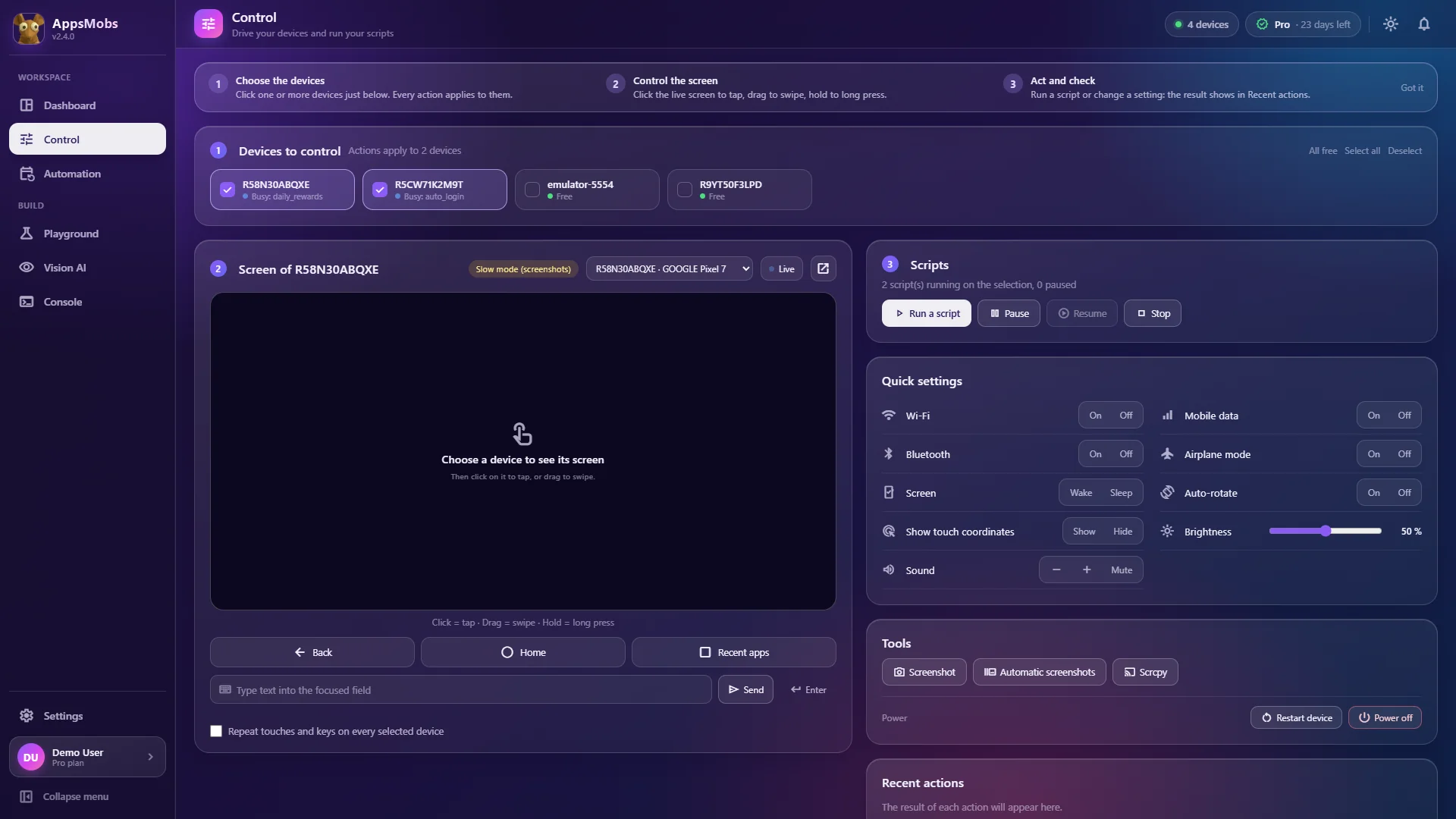
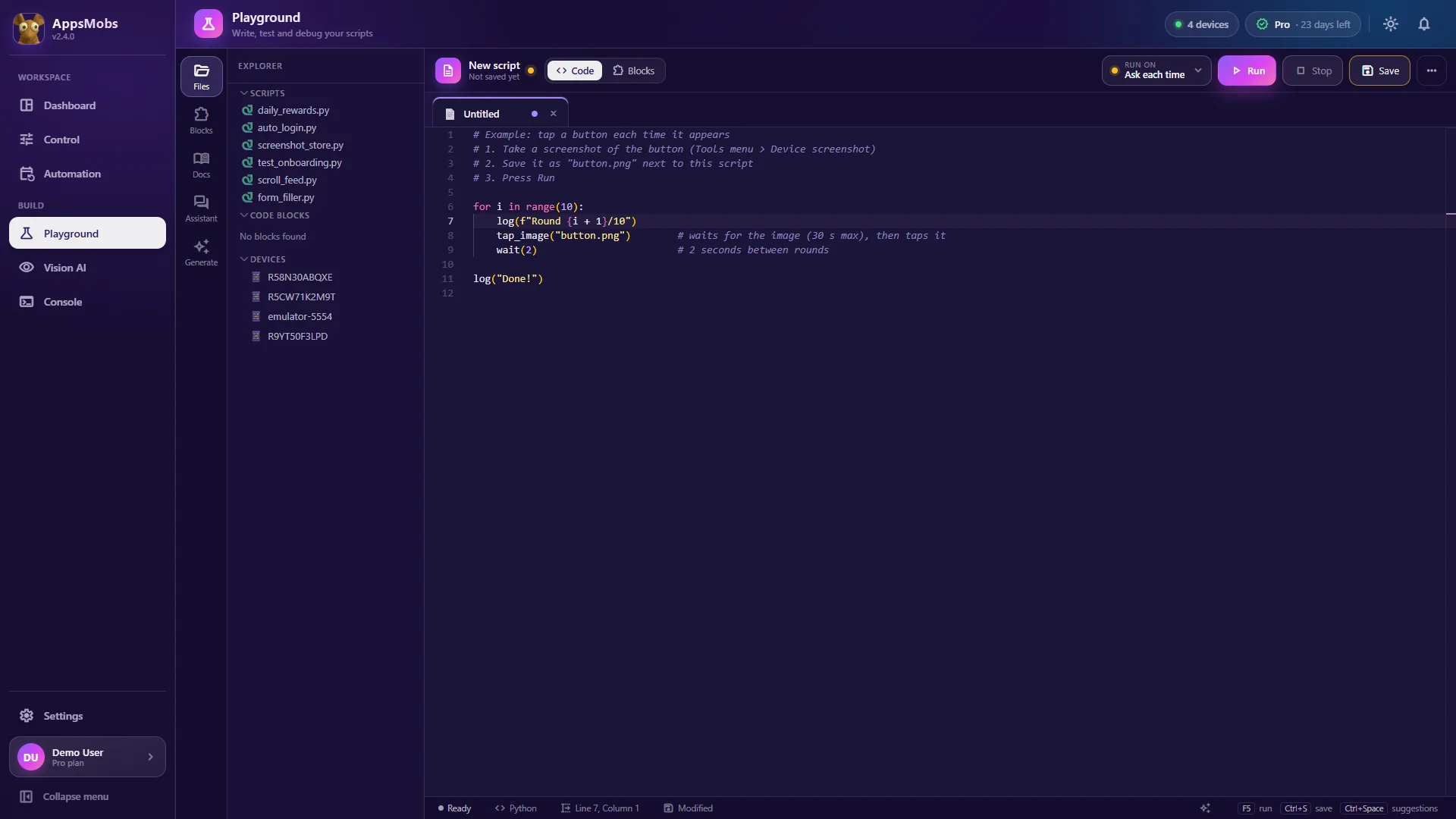
This is the AppsMobs approach. Your phone is connected to your PC (over USB, or through LDPlayer for an emulator), you see its screen live, and you assemble your routine from blocks: "open app", "tap", "wait", "if… then…", "repeat". Every block maps to a real function of the library, which means two important things:
- what you build in blocks is a real script, not a fragile recording;
- the day you want more, you can open the Python view of your blocks and edit it.
No-code becomes a starting point rather than a dead end.
Building your first block routine, step by step
Let us take a simple and very common case: open an app, claim a daily reward, close the app.
Step 1: connect the phone
Turn on developer options and USB debugging on the phone (a one-time setting), plug it in, accept the trust prompt. In AppsMobs the device appears with its live screen. The connection guide walks through every screen.
Step 2: lay out the skeleton
In the block editor, place in order:
- Open app (pick the app from the list);
- Wait a few seconds for the home screen to load;
- Tap the reward button;
- Wait for the confirmation;
- Close app.
Run it. Does it work? Congratulations, you just automated your first routine.
Step 3: make it robust
This is where most "no-code" automations fail, and where you will make the difference. Replace fixed waits with smart waits: instead of "wait 5 seconds", use "wait until the button appears". If the app takes 2 seconds one day and 9 the next, your routine adapts.
Then add a condition: if the reward button is not there (already claimed today), then close the app straight away. A routine that knows what to do when things go differently is a routine that runs for weeks without you.
Step 4: add a human touch
Timing blocks offer slightly randomised delays. A human never taps exactly every 2.000 seconds, and your routine should not either. It also makes the run more tolerant of small variations in the app.
When coordinates are not enough: vision
Some apps never put the button in the same place. A banner pushes the content down, a grid of items reshuffles, a game interface keeps moving. Tapping fixed coordinates simply does not work there.
For those cases AppsMobs offers Vision AI (from the Pro plan). The idea: you capture a few screens of the app, draw a box around what matters (the "Claim" button, say), and the app trains a small detection model on your PC. Then, in your blocks, instead of "tap at this spot", you say "find the Claim button and tap it". The model recognises the button wherever it is.
Training can run locally (GPU required): your screenshots and model then stay on your computer. The Cloud GPU option goes through Google Colab, and in that case your images are sent there.
Scheduling the routine so it runs without you
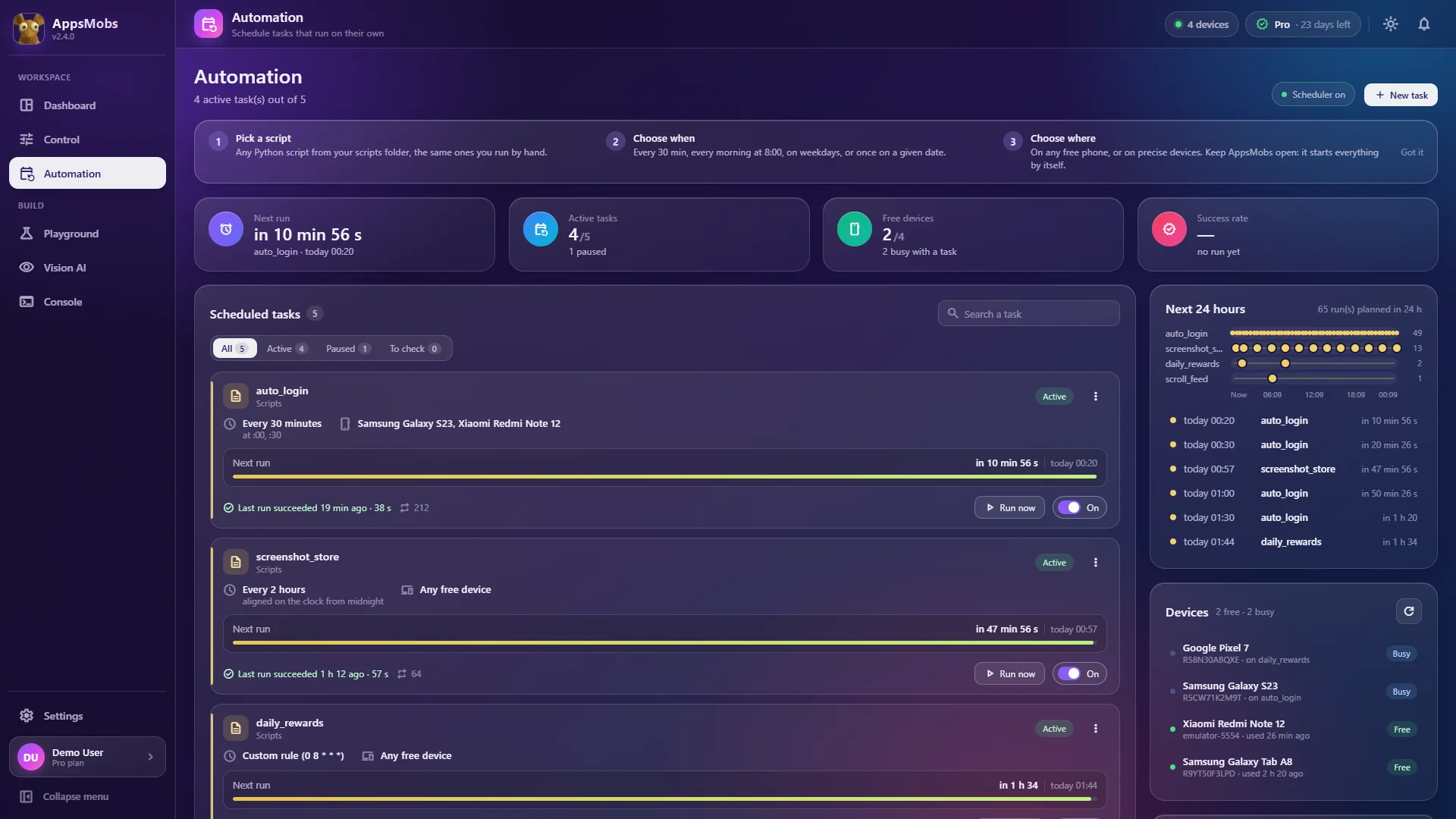
A routine you must start by hand is still a chore. The scheduler lets you say "run this routine every day at 8 am" or "every 30 minutes". Each run leaves its log in the Console, so if something got stuck overnight you see at which step. To keep the screen too, add a "screenshot" block where it matters.
One honest caveat: the scheduler needs AppsMobs open on your PC. If the computer is off, nothing runs.
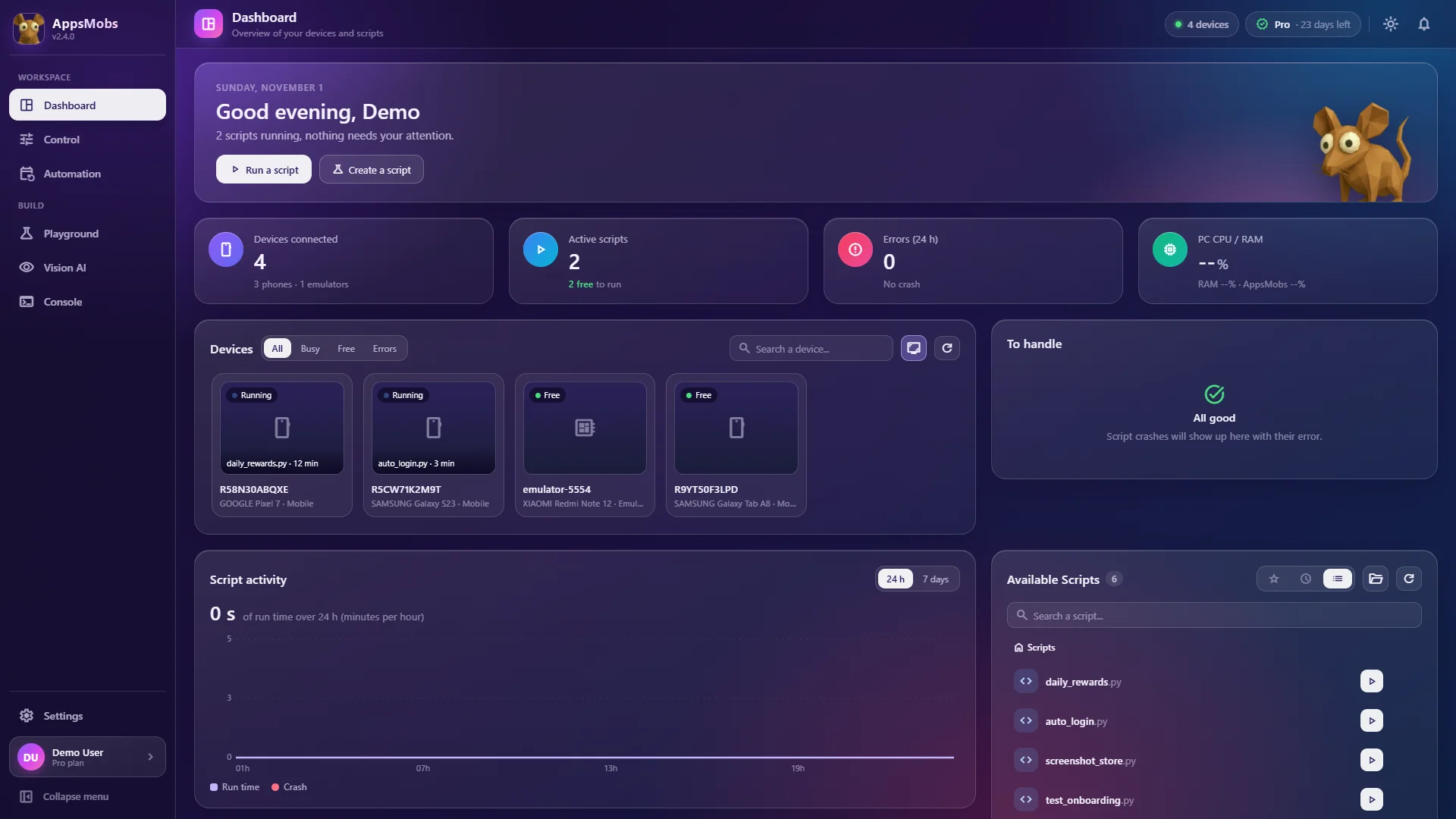
And when you have several phones?
The same routine can run on several devices at once. The number of phones depends on your plan: from 1 on Starter to 10 on Ultimate (details on the pricing page).
Moving to code, if you ever want to
You never have to code. But if the urge comes, there are two shortcuts:
- the Python view of any block script, to see what you have built;
- your own AI (Claude, Grok, ChatGPT…): give it the AppsMobs pack and it drafts a script from a plain-English description, using only real functions (see Write scripts with Claude or Grok).
Plenty of people start with blocks, open the Python view "just to look", and change one line. Then two. That is the best way to learn: on a problem that is yours.
Key takeaways
- A durable automation looks at the screen before acting: smart waits and conditions instead of fixed delays.
- Blocks are enough for the large majority of daily routines.
- Vision takes over when buttons move.
- The scheduler turns a routine into something that runs without you.
Want to see what it looks like? The product tour shows every module with its real limits, and you can download AppsMobs to connect your first phone.